
How to Build a Static Website Using HTML, CSS & JavaScript (Beginner-Friendly Guide)
Static websites are the foundation of everything in modern web development. Before you use React, Angular, or full-stack tools, you need to understand how to build a static website using the three core technologies of the web: HTML, CSS, and JavaScript.
In this step-by-step guide, you’ll build your own fully functional static website from scratch — complete with styled sections, an interactive button, organized file structure, and instructions for free deployment online.
Even if you’ve never built a website before, you will be able to follow this. No frameworks. No backend. No complexity. Just real foundational skills.
By the end of this tutorial, you will know exactly how to:
Create your project structure
Write clean HTML
Style your site with modern CSS
Add interactivity using JavaScript
Test your site locally
Deploy your site for free
Let’s start by understanding what a static website really is.
1. What Is a Static Website?
A static website is a website built from fixed files — HTML, CSS, and JavaScript — delivered exactly as they are stored. There is no server-side processing or database pulling in dynamic content.
In other words:
What you write in your files is exactly what your visitors see.
Static sites are:
Fast
Secure
Lightweight
Easy to build
Easy to deploy
Perfect for beginners
Free to host on many platforms
Best uses for static websites:
Portfolio websites
Personal blogs
Small business websites
Tutorial pages
Landing pages
Documentation
Product showcases
School projects
Before diving into CSS or JavaScript, we first need a project folder.
2. Static Website Project Structure (Step-by-Step)
Create a new folder anywhere on your computer and name it:
my-websiteInside the folder, create three files:
my-website/
│ index.html
│ style.css
│ script.js
This is all you need to build a static website.
3. Step 1 — Build the HTML Structure
HTML is the skeleton of your site. It defines the layout, content, and structure.
Open index.html and paste this code:
<!DOCTYPE html>
<html lang="en">
<head>
    <meta charset="UTF-8">
    <meta name="viewport" content="width=device-width, initial-scale=1.0">
    <title>My Static Website</title>
    <link rel="stylesheet" href="style.css">
</head>
<body>

    <header>
        <h1>Welcome to My Static Website</h1>
        <p>This website was built using HTML, CSS, and JavaScript.</p>
    </header>

    <section id="about">
        <h2>About This Page</h2>
        <p>This is a simple static website created as part of a beginner-friendly tutorial.</p>
        <button id="changeTextBtn">Click Me</button>
    </section>

    <footer>
        <p>© 2025 My Static Website</p>
    </footer>

    <script src="script.js"></script>
</body>
</html>
**

**
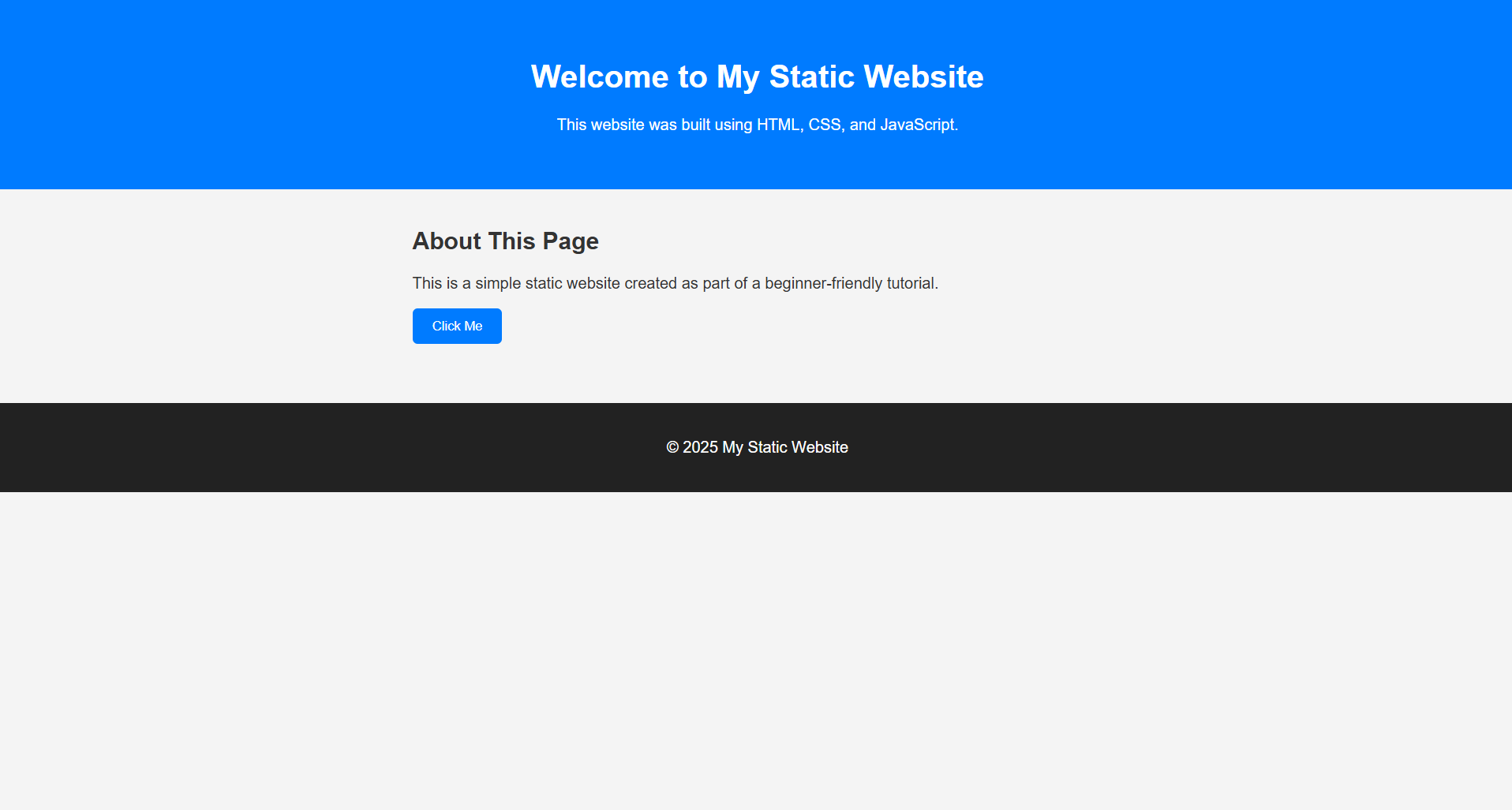
A simple example of a static website layout built using HTML, CSS, and JavaScript.
4. Step 2 — Style the Website Using CSS
CSS adds design, spacing, colors, and layout control.
Open style.css and add:
body {
    margin: 0;
    font-family: Arial, sans-serif;
    background: #f4f4f4;
    color: #333;
}

header {
    background: #007bff;
    color: white;
    padding: 40px;
    text-align: center;
}

section {
    padding: 20px;
    max-width: 700px;
    margin: 0 auto;
}

button {
    padding: 10px 20px;
    background: #007bff;
    color: white;
    border: none;
    border-radius: 5px;
    cursor: pointer;
}

button:hover {
    background: #0056b3;
}

footer {
    text-align: center;
    padding: 20px;
    background: #222;
    color: white;
}
Your site now looks modern, clean, and professional.
⭐ CSS Demonstration Image

 **
**
A modern, clean static website styled using basic CSS properties.
5. Step 3 — Add JavaScript Interactivity
JavaScript brings your site to life.
Open script.js and add:
document.getElementById("changeTextBtn").addEventListener("click", function () {
    const newMessage = document.createElement("p");
    newMessage.textContent = "You clicked the button! JavaScript is working.";
    document.getElementById("about").appendChild(newMessage);
});
This adds a new line of text every time a user clicks the button.
6. What Your Website Looks Like Now
You now have:
A styled header
A content section
A clickable button
JavaScript interactivity
A footer
A complete static website
This is the exact foundational setup used in real-world web development before adding databases or frameworks.
7. Testing Your Static Website Locally
There are two main methods:
Option A — Open index.html in a Browser
Double-click index.html
Your website loads instantly
Works offline
No setup required
Fastest for beginners
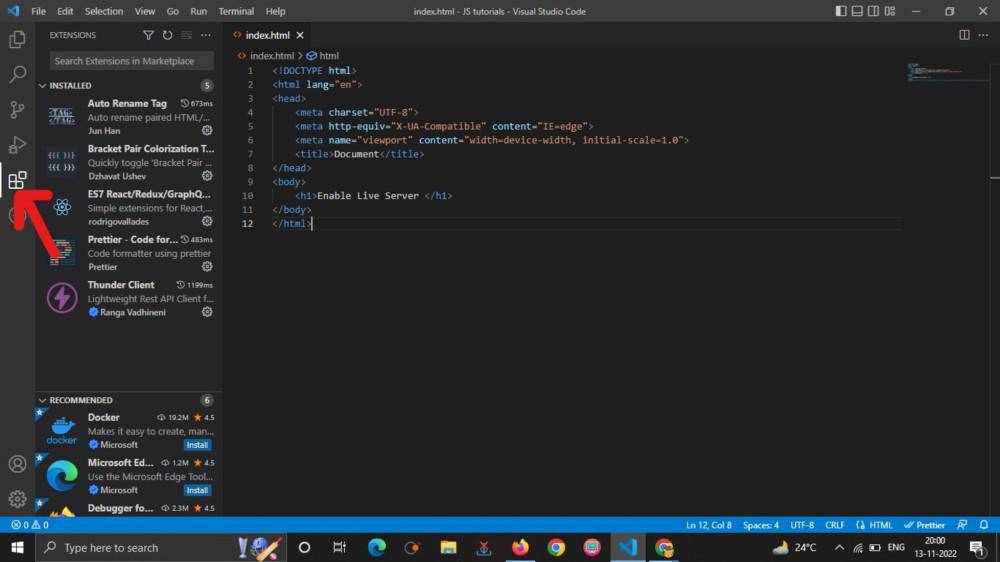
Option B — Use VS Code and Live Server
Live Server auto-refreshes your browser every time you save.
Steps:
Install Visual Studio Code
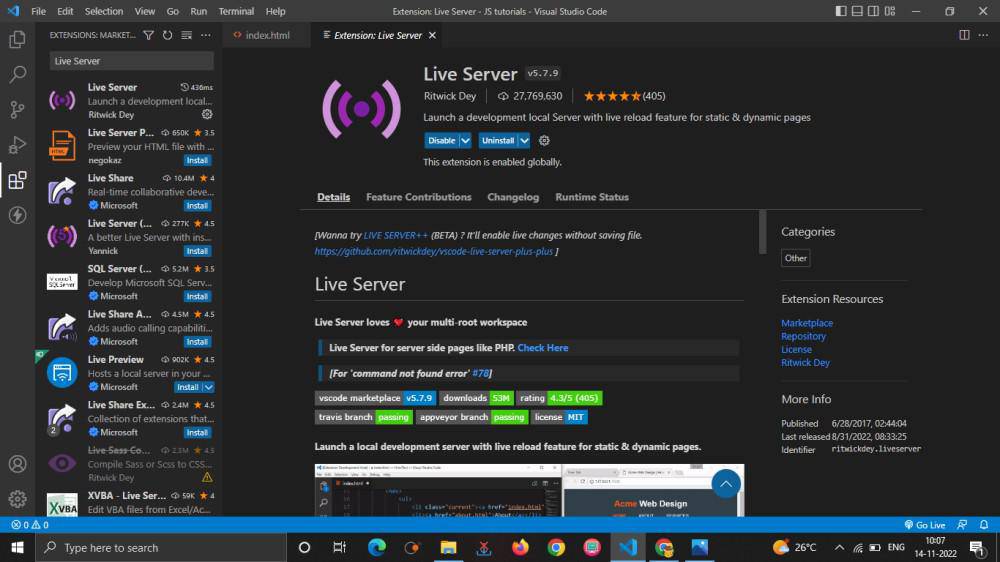
Install the Live Server extension
Right-click index.html → Open with Live Server
You will now see:
 **
**
8. Expand the Website (Optional But Recommended)
Here are easy features to add next:
✔ Navigation bar
✔ More pages (about.html, contact.html)
✔ Image gallery
✔ Light mode / dark mode
✔ CSS animations
✔ JavaScript dropdown menu
✔ Contact form (requires 3rd-party email service)
These additions help you grow from beginner to confident developer.
9. Deploy Your Static Website Online (Free)
Static sites are incredibly easy to publish.
Here are the three best free platforms:
Option 1 — Netlify (Easiest for Beginners)
Steps:
Go to netlify.com
Click Add New Site → Deploy Manually
Drag your entire my-website folder into the page
Done — your site is live
Option 2 — GitHub Pages
Great for developers and students.
Upload your files to a GitHub repository
Go to Settings → Pages
Set branch: main → /root
Publish
Option 3 — Vercel
Perfect for JavaScript projects.
Go to vercel.com
Import your GitHub repo
Deploy automatically
10. SEO Tips to Help Your Static Website Rank
Here’s how to help your article rank faster:
✔ Add keywords naturally in your headings
✔ Include 3–5 images with alt text
✔ Interlink to your other content
✔ Include step-by-step content
✔ Add FAQs
✔ Keep paragraphs short for readability
11. Complete Code (All Files Included)
index.html
(already provided above)
style.css
(already provided above)
script.js
(already provided above)
12. Frequently Asked Questions (FAQ)
1. Do I need a backend to build a static website?
No — static sites do not require servers or databases.
2. Can I build a static website without JavaScript?
Yes, but JavaScript lets you add interactivity.
3. What’s the difference between static and dynamic websites?
Static = same content for everyone.
Dynamic = server-generated, personalized content.
4. Are static websites good for SEO?
Yes — they load fast, which helps ranking.
5. How long does it take to build a static website?
Beginners can build one in under an hour.
->Click this link to read another blog about coding - Microsoft Visual Studio What It Is Uses and Why Developers Rely On It
13. Conclusion
Building a static website is the perfect first step into web development. Using only HTML, CSS, and JavaScript, you’ve created a complete, functional webpage with structure, design, and interactivity.
This foundation is exactly how professional developers start before moving to larger frameworks or full-stack systems.
You now know how to:
Structure your project
Write clean HTML
Style layouts with CSS
Add interactive JavaScript
Test locally
Deploy for free
From here, you can expand your skills with more advanced layout techniques, animations, API calls, and multi-page website structures.
If you enjoyed reading this check out more blogs on web development and stock trading at 3d-it.net/blog
Check out this article about developing using Github - Beginner Friendly Guide To Using Github